
Upheal
Upheal is a mental health platform that leverages technology to enhance therapy sessions and improve patient outcomes.
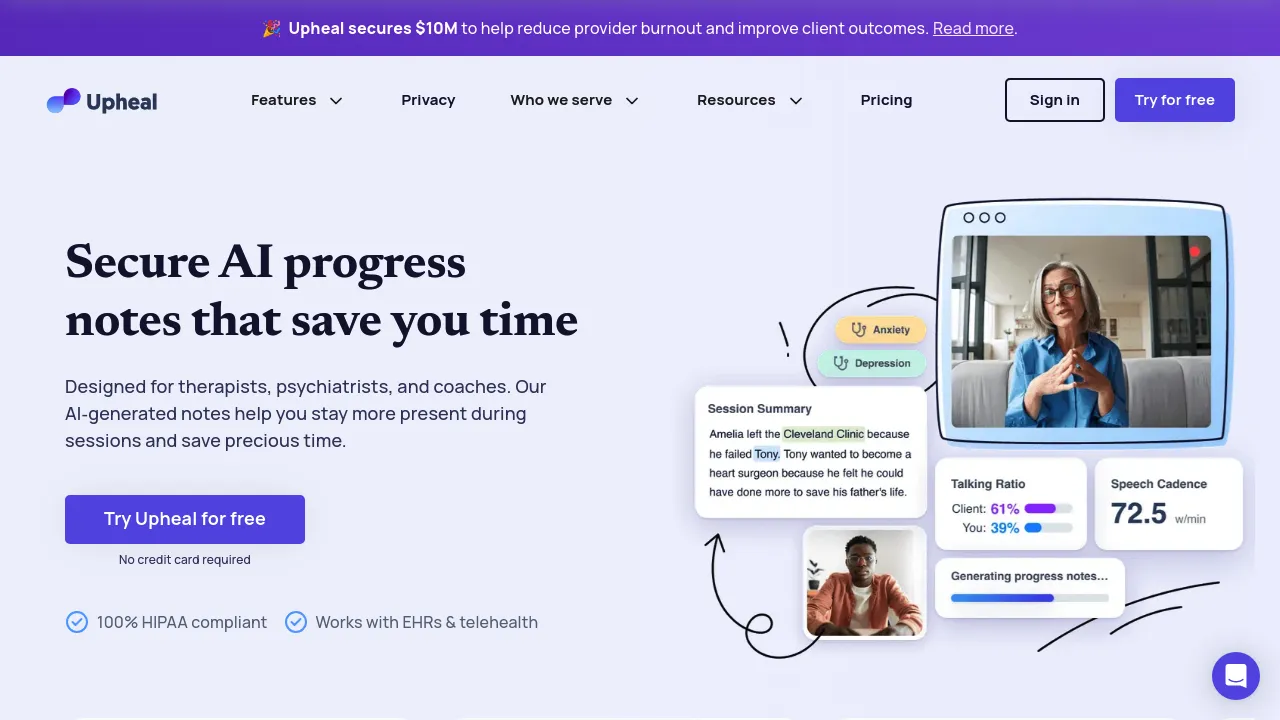
The Complete Beginner's Guide to Upheal
Introduction
Overview of Upheal
Upheal is an advanced AI-powered documentation platform specifically designed for mental health professionals, including therapists, psychiatrists, social workers, and counselors. Built by clinicians who understand the unique challenges of therapeutic documentation, Upheal transforms the way session notes are created and managed, allowing practitioners to focus more on patient care and less on administrative tasks.
The platform leverages artificial intelligence to automatically capture and organize key information from therapy sessions, generating comprehensive progress notes that maintain clinical accuracy while reflecting each therapist's unique voice and approach. With support for multiple session formats—from in-person consultations to virtual meetings—Upheal adapts to diverse practice needs and workflows.
Key Benefits and Use Cases
Time Savings: Mental health professionals using Upheal report saving up to 10 hours per week on documentation, with the platform being up to 90% faster than manual note-taking. This significant time reduction allows clinicians to see more clients, invest in professional development, or simply achieve better work-life balance.
Enhanced Clinical Presence: By automating the note-taking process, therapists can remain fully present and attentive during sessions rather than dividing attention between the client and documentation. This improved engagement strengthens therapeutic relationships and enhances the quality of care.
Consistent Documentation Quality: The AI ensures that clinical notes are comprehensive, professionally structured, and consistently formatted according to industry standards. This consistency is particularly valuable for insurance requirements, audit compliance, and continuity of care.
Flexible Session Capture: Upheal accommodates various documentation methods including live session recording (both in-person and virtual), manual recording uploads, voice dictation, and text-based summaries. This flexibility allows practitioners to choose the approach that best suits their comfort level and practice requirements.
Treatment Planning: Beyond individual session notes, Upheal generates Golden Thread documentation that connects session notes with comprehensive treatment plans, creating cohesive clinical narratives that support outcome measurement and insurance requirements.
Who Uses Upheal
Upheal serves a diverse community of over 36,000 mental health professionals across multiple specialties and practice settings:
- Individual Practitioners: Solo therapists and counselors in private practice who need efficient documentation without enterprise-level complexity
- Group Practices: Multi-clinician practices requiring team management features, supervision capabilities, and consistent documentation standards
- Virtual Care Providers: Telehealth-focused practices and digital health companies scaling their services across multiple providers
- Various Specialties: The platform supports professionals across therapeutic modalities including psychotherapy, psychiatry, couples therapy, family therapy, EMDR, DBT, CBT, and coaching
Upheal partners with leading mental health platforms including Alma, Cartwheel Care, and integrates seamlessly with popular EHR systems and telehealth platforms.
What Makes Upheal Unique
Clinical Intelligence: Unlike generic medical transcription tools, Upheal's AI is specifically trained on mental health documentation and therapeutic language. It understands intervention terminology, clinical reasoning patterns, and therapeutic relationship dynamics that define authentic behavioral health documentation.
Customization Capabilities: The platform offers over 170 clinically-approved sections for building custom note templates, plus Smart Sections that allow therapists to teach the AI their specific clinical approach through custom prompts. This ensures documentation reflects individual therapeutic style rather than generic templates.
Privacy-First Approach: Upheal maintains strict HIPAA, PHIPA, PIPEDA, GDPR, and SOC 2 Type II compliance. Audio recordings are automatically deleted by default unless explicitly saved, and the platform never sells or monetizes client data. Providers can choose to generate notes from brief summaries or dictation without any session recording.
Adaptive Learning: With every edit made to generated notes, Upheal's AI learns and adapts to better reflect each therapist's writing style over time. This continuous improvement ensures that documentation becomes increasingly personalized and accurate.
Multi-Language Support: The platform captures sessions in English, Spanish, Portuguese, German, French, Italian, Mandarin, and Hindi, supporting diverse client populations.
Comprehensive Template Library: Upheal provides multiple therapeutic and psychiatric progress note templates including SOAP, DAP, GIRP, BIRP, EMDR, PIRP, SIRP, PIE, Intake, Mental Status Exam, and more—supporting various therapeutic approaches and documentation requirements.
Pricing Plans
Upheal offers flexible pricing to accommodate different practice needs and sizes:
Free Plan - $0/month
- Unlimited AI-generated notes from dictated or text summaries
- Manually upload session recordings
- HIPAA-compliant telehealth (without AI notes)
- Basic note templates
- No credit card required
- No time limitations
Starter Plan - $19/month (billed annually) or $29/month (billed monthly)
Most popular for individual practitioners
- Everything in Free, plus:
- All note types and templates
- Capture in-person sessions and EHR calls
- Smart Edit for quick AI adjustments
- Note template customization
- 14-day free trial available
Premium Plan - $69/month (billed annually) or $99/month (billed monthly)
- Everything in Starter, plus:
- Treatment plans with Golden Thread documentation
- Custom AI prompts in templates (Smart Sections)
- Telehealth with AI notes
- Compliance Checker
- Advanced analytics
- 14-day free trial available
Team Plan - Custom Pricing
Designed for group practices
- Everything in Premium, plus:
- Team management tools
- Supervision capabilities
- SSO login
- Contact sales for pricing
Enterprise Plan - Custom Pricing
For large organizations and virtual care providers
- Everything in Team, plus:
- Open API access
- Customized note development
- Dedicated customer success manager
- Service-level agreement (SLA) available
- Volume discounts
- Contact sales for pricing
Annual Savings: Choosing annual billing saves over 30% compared to monthly payments (saving $120/year on Starter and $360/year on Premium).
Money-Back Guarantee: All paid plans include a 30-day money-back guarantee.
Official Pricing: For the most current pricing information, visit the official Upheal pricing page.
Disclaimer: Pricing information is subject to change. Please visit Upheal's official website for the most up-to-date pricing details.
Getting Started
System Requirements
Supported Devices and Platforms:
- Web Browser: Chrome, Firefox, Safari, Edge (latest versions recommended)
- Desktop Applications:
- Windows desktop app
- MacOS desktop app (newly released)
- Mobile Applications: iOS and Android apps available
- Browser Extension: Chrome extension for EHR integration
Internet Connection: Stable internet connection required for real-time transcription and cloud synchronization.
Audio Recording:
- For in-person sessions: Any recording device with audio capture capability (smartphone, tablet, laptop)
- For virtual sessions: Compatible with all major telehealth platforms and video calling applications
EHR Integration: The Upheal Chrome extension works with any web-based EHR system including SimplePractice, TherapyNotes, IntakeQ, drChrono, DoxyMe, and Healthie.
No Special Hardware Required: Upheal works with standard devices—no specialized recording equipment necessary.
Basic Interface Navigation
Dashboard Overview: Upon logging in, you'll see your main dashboard featuring:
- Recent sessions list
- Quick action buttons (Start New Session, Create Note, Schedule)
- Client management overview
- Upcoming appointments
Left Navigation Menu:
- Sessions: View all past and scheduled sessions
- Clients: Manage client database and information
- Templates: Access and customize note templates
- Calendar: Schedule and manage appointments
- Settings: Configure account preferences and integrations
Creating a New Note:
- Click "Create Note" or "Start Session" from the dashboard
- Select the session format (live recording, upload recording, dictation, or text summary)
- Choose or create a client profile
- Select your preferred note template
- Begin capturing or entering session information
Session Capture Options:
- In-Person Recording: Use the mobile or desktop app to record live sessions
- Virtual Session Capture: Record sessions from any telehealth platform or video call
- Manual Upload: Upload pre-recorded audio files
- Dictation: Speak your session summary using voice-to-text
- Text Summary: Type a brief summary for AI note generation
Client Management:
- Add new clients with basic demographic information
- Track session history for each client
- View treatment plans and progress over time
- Manage client consent forms
Template Library: Browse and select from pre-built note templates or create custom templates using Smart Sections.
Core Features
Essential Functions Overview
AI Progress Note Generation: The cornerstone feature of Upheal automatically creates comprehensive clinical notes from session content. The AI captures key topics, symptoms, interventions, treatment goals, and clinical observations while maintaining professional structure and accuracy.
Multiple Note Templates: Access various documentation formats including:
- SOAP (Subjective, Objective, Assessment, Plan)
- DAP (Data, Assessment, Plan)
- BIRP (Behavior, Intervention, Response, Plan)
- GIRP (Goals, Intervention, Response, Plan)
- PIRP (Problem, Intervention, Response, Plan)
- SIRP (Situation, Intervention, Response, Plan)
- PIE (Problem, Intervention, Evaluation)
- EMDR (Eye Movement Desensitization and Reprocessing)
- Intake Notes
- Mental Status Exam (MSE)
- Custom Templates
Smart Edit: Make quick adjustments to generated notes using natural language commands. The AI understands instructions like "make this more concise" or "add more detail about the client's coping strategies" and updates the documentation accordingly.
Treatment Plan Generation: Automatically create insurance-ready treatment plans with SMART goals (Specific, Measurable, Achievable, Relevant, Time-bound) based on session history. The Golden Thread feature connects individual session notes into comprehensive treatment documentation.
Session Analytics: Gain insights into therapeutic sessions including:
- Speech cadence analysis
- Speaking time ratio (therapist vs. client)
- Moments of silence and their duration
- Emotional tone tracking
- Key topic identification
Compliance Checker: Automatically review notes for clinical and insurance compliance, ensuring documentation meets payer requirements and professional standards.
Multi-Speaker Recognition: The AI accurately distinguishes between multiple speakers in couples and family therapy sessions, attributing content appropriately.
Telehealth Platform: Integrated HIPAA-compliant video calling for secure virtual sessions with clients.
Scheduling and Calendar Management: Book appointments, send automated reminders, and sync with multiple calendar systems.
Client Consent Management: Collect, store, and manage client consent forms securely within the platform.
EHR Integration: Use the Chrome extension to instantly transfer completed notes into your existing EHR system with one click.
Basic Operations Tutorial
Step 1: Recording Your First Session
For In-Person Sessions:
- Open the Upheal mobile or desktop app before the session begins
- Select the client from your list or create a new client profile
- Tap "Start Recording" when ready to begin the session
- Place the device in an optimal location for audio capture
- Tap "Stop Recording" when the session concludes
- The recording automatically uploads to the cloud for processing
For Virtual Sessions:
- Start your regular telehealth platform or video call
- Open Upheal in a separate window or on another device
- Click "Capture Virtual Session"
- Upheal will record the audio from your computer
- End capture when the session completes
Step 2: Selecting a Note Template
- After recording, you'll be prompted to choose a note template
- Browse the template library or use your saved custom templates
- Select the template that matches your documentation needs
- The template determines the structure and sections of your final note
Step 3: Generating Your Note
- Upheal's AI processes the session audio or your input
- Generation typically takes 2-5 minutes depending on session length
- You'll receive a notification when the note is ready
- The generated note appears in your dashboard
Step 4: Reviewing and Editing
- Open the generated note to review content
- Use Smart Edit for quick adjustments using natural language
- Make manual edits directly in the text as needed
- Add any additional observations or context
- The AI learns from your edits to improve future notes
Step 5: Finalizing and Exporting
- Review the note for accuracy and completeness
- Click "Finalize" to mark the note as complete
- Use the Chrome extension to copy the note to your EHR
- Or download/print the note for your records
Alternative: Text-to-Note Generation
- Choose "Create Note from Text/Dictation"
- Type or dictate a brief session summary (3-5 sentences minimum)
- Select your note template
- Generate the note
- Review and finalize
Common Settings Explained
Account Settings:
- Profile Information: Update your name, credentials, and contact details
- Practice Details: Add your practice name, NPI number, and licensing information
- Signature: Upload or create your professional signature for notes
Privacy and Security:
- Audio Recording Retention: Choose to automatically delete recordings after note generation or save them for a specified period
- Data Sharing Preferences: Opt in or out of anonymized data sharing for platform improvements
- Two-Factor Authentication: Enable additional login security
Note Generation Preferences:
- Default Template: Set your preferred note template for quick session starts
- Language Settings: Select the primary language for session capture
- Note Length: Adjust between concise, standard, or detailed note generation
- Clinical Voice: Configure how formal or conversational you want the note style
Smart Sections and Custom Prompts:
- Template Builder: Create custom note templates with specific sections
- Custom AI Prompts: Teach the AI your clinical approach and terminology
- Section Library: Access and manage your saved custom sections
Integration Settings:
- EHR Connection: Configure your Chrome extension for specific EHR systems
- Calendar Sync: Connect external calendars (Google, Outlook, Apple)
- Telehealth Preferences: Set default meeting links and settings
Notification Preferences:
- Email Notifications: Choose which events trigger email alerts
- In-App Notifications: Customize dashboard notification displays
- Client Reminders: Configure automatic appointment reminder schedules
Billing and Subscription:
- Plan Management: View current plan and upgrade/downgrade options
- Payment Method: Update credit card or payment information
- Billing History: Access invoices and payment records
Team Settings (Team/Enterprise plans):
- User Management: Add team members and assign roles
- Supervision Access: Configure supervisor review permissions
- Practice Policies: Set organization-wide documentation standards
First Project Tutorial
Step-by-Step Walkthrough: Creating Your First AI-Generated Progress Note
Before You Begin:
- Ensure you've completed account setup and client consent
- Choose whether to record a live session or generate from a summary
- Have your client's basic information ready
Method 1: From a Live Session Recording
Step 1: Prepare for Recording
- Open the Upheal app on your device 10-15 minutes before the session
- Select or create the client profile
- Choose "Record In-Person Session" or "Capture Virtual Session"
- Test audio levels if using in-person recording
- Position your device where it will clearly capture both voices
Step 2: Capture the Session
- Click "Start Recording" when you and the client are ready to begin
- A subtle indicator shows recording is active
- Conduct your session as normal—the AI will capture key information
- Don't worry about speaking toward the device; natural conversation is best
- Click "Stop Recording" when the session concludes
Step 3: Select Your Note Template
- Immediately after stopping, you'll see the template selection screen
- For your first note, we recommend starting with SOAP or DAP format
- Click on your chosen template to proceed
- The template determines the structure of your generated note
Step 4: Wait for Processing
- Upload begins automatically (usually completes within 30 seconds)
- AI processing takes 2-5 minutes for a 50-minute session
- You can close the app and return later—you'll receive a notification
- Progress is shown in the "Sessions" tab of your dashboard
Step 5: Review Your Generated Note
- Open the completed note from your dashboard
- Review each section for accuracy and completeness
- Check that client names, symptoms, and interventions are correctly captured
- Verify that the clinical language matches your style and approach
Step 6: Edit and Refine
- Use Smart Edit for quick adjustments: type natural commands like "expand the assessment section" or "make the plan more specific"
- Make direct text edits for any corrections needed
- Add any details the AI might have missed
- Include additional clinical observations or context
Step 7: Finalize and Export
- Click "Finalize" when you're satisfied with the note
- Open your EHR in a browser
- Click the Upheal Chrome extension icon
- Select the note and click "Smart Fill" to transfer it to your EHR
- Or copy/paste manually if preferred
Method 2: From a Text Summary (Without Recording)
Step 1: Create a New Note
- From the dashboard, click "Create Note"
- Select "Generate from Text/Dictation"
- Choose or create the client profile
Step 2: Enter Session Summary
- Type or dictate a brief summary of the session (minimum 3-5 sentences)
- Include key topics discussed, interventions used, and client responses
- Mention any changes in symptoms or functioning
- Note treatment plan progress or adjustments
Example summary: "Client presented with continued anxiety about work performance. We explored cognitive distortions related to perfectionism. Introduced thought-challenging techniques and created a worksheet for between-session practice. Client reported improved sleep since last session. Will continue CBT approach focusing on workplace stress management."
Step 3: Generate and Review
- Select your note template (SOAP, DAP, etc.)
- Click "Generate Note"
- Wait 30-60 seconds for processing
- Review the expanded note created from your summary
Step 4: Complete Your Note
- Edit as needed using the same review process
- Finalize and export to your EHR
Tips for Best Results
Audio Recording Quality:
- Place recording device 3-6 feet from the conversation, centered between speakers
- Minimize background noise (close windows, turn off fans, silence phones)
- Test recording quality before your first actual session
- For in-person sessions, avoid rustling papers near the microphone
Session Summary Tips:
- Include 4-6 key points from the session
- Mention specific interventions or techniques used
- Note any significant changes or developments
- Reference treatment goals when relevant
- Don't worry about perfect grammar—the AI will structure it properly
Note Review Best Practices:
- Read through the entire note before making edits
- Check accuracy of clinical terms and diagnoses
- Verify that interventions and responses are correctly paired
- Ensure the plan section includes actionable next steps
- Confirm that the note reflects your clinical judgment
Leveraging AI Learning:
- When editing, use Smart Edit commands when possible—this teaches the AI your preferences
- Make consistent edits across multiple notes to establish patterns
- Create custom sections for regularly used clinical frameworks
- Save frequently used phrasing as custom prompts
Client-Specific Considerations:
- For new clients, use Intake note templates for the first session
- Review past session notes before generating new ones for continuity
- Use the treatment plan feature after 3-4 sessions to establish goals
- Monitor the AI's accuracy with each client and provide feedback
Privacy and Ethics:
- Always obtain informed consent before recording sessions
- Explain to clients how the AI works and how data is protected
- Review generated notes the same day to ensure accuracy while memory is fresh
- Never rely solely on AI—clinical judgment must guide final documentation
Troubleshooting Basics
Issue: Poor Audio Quality or Missing Content
Symptoms: Note is incomplete, missing key conversation points, or contains [unintelligible] markers
Solutions:
- Check recording device placement and audio settings
- Ensure the room has minimal echo or background noise
- Verify microphone permissions are enabled on your device
- Test audio capture before the next session
- If using virtual capture, check system audio routing
- Consider uploading the recording manually if the automatic capture failed
Issue: Inaccurate Clinical Language
Symptoms: Generated note uses incorrect terminology, misidentifies interventions, or doesn't match your clinical approach
Solutions:
- Use Smart Edit to correct specific terminology
- Create custom sections with prompts that specify your preferred language
- Edit consistently across multiple notes to train the AI
- Check that you've selected the appropriate note template for the session type
- For specialized modalities (EMDR, DBT), use the specific templates designed for those approaches
Issue: Note Generation Takes Too Long
Symptoms: Processing exceeds 10 minutes or appears stuck
Solutions:
- Check your internet connection stability
- Verify the audio file uploaded successfully (check Sessions tab)
- Try refreshing the page
- For very long sessions (90+ minutes), processing may take up to 15 minutes
- Contact Upheal support if processing exceeds 20 minutes
Issue: Cannot Transfer Note to EHR
Symptoms: Chrome extension doesn't populate fields or isn't working
Solutions:
- Verify the Chrome extension is installed and updated
- Check that you're logged into Upheal in the extension
- Confirm your EHR page is fully loaded before clicking Smart Fill
- Try copying and pasting manually as an alternative
- Clear browser cache and cookies, then try again
- Review extension permissions in Chrome settings
Issue: AI Misses Important Session Details
Symptoms: Generated note lacks specific information you know was discussed
Solutions:
- Manually add the missing information—the AI learns from these additions
- Check recording quality for that portion of the session
- For text summaries, be more specific about details you want included
- Consider dictating immediately after sessions while memory is fresh
- Create custom prompts that specifically ask for the types of details you need
Issue: Client Names or Information Mixed Up
Symptoms: Wrong client name appears or details from another client are included
Solutions:
- Verify you selected the correct client profile before recording
- Check that client profiles have distinct identifying information
- Review and correct immediately—don't finalize until accurate
- This is rare but can happen with very similar names
- Update client profiles with more distinguishing details if needed
Issue: Template Doesn't Match Documentation Needs
Symptoms: Generated note structure doesn't fit your practice requirements
Solutions:
- Explore other templates in the library
- Use the Template Builder to create a custom template
- Add Smart Sections with prompts for specific content you need
- Contact support to request specific template features
- Enterprise users can request completely customized template development
Getting Additional Help:
- Access the Upheal Support Center for comprehensive guides
- Join the Upheal Community for peer discussions
- Email support at [email protected] for direct assistance
- Premium and Enterprise users: Schedule calls with customer success team
- Check the Recent Updates section for new features and improvements
Best Practices
Recommended Workflows
Daily Documentation Routine:
- Morning Review: Check upcoming appointments and prepare client profiles
- Session Preparation: Open Upheal 5-10 minutes before each appointment
- Immediate Processing: Generate notes within 1-2 hours of session completion while details are fresh
- Same-Day Finalization: Review and finalize all notes before end of business day
- Weekly Treatment Planning: Review client progress weekly and update treatment plans accordingly
Optimal Recording Setup:
- In-Person: Place smartphone or tablet on a side table at equal distance from both chairs
- Virtual: Use Upheal's built-in telehealth or capture from your preferred platform
- Backup Protocol: For critical sessions, have a secondary recording device as backup
- Consent Protocol: Verbally confirm recording consent at the start of each session
Template Organization Strategy:
- Create 3-5 core templates that cover 90% of your sessions
- Develop specialized templates for specific modalities or client populations
- Name templates clearly (e.g., "CBT - Weekly Progress," "Intake - Individual Adult")
- Review and refine templates quarterly based on practice evolution
- Share standardized templates across team members for consistency
Client-Specific Customization:
- For ongoing clients, review previous 2-3 notes before sessions
- Create client-specific custom prompts for unique treatment considerations
- Use treatment plan features to maintain longitudinal perspective
- Set up custom sections for recurring assessment needs (e.g., PHQ-9 tracking)
Quality Assurance Workflow:
- First-pass review immediately after generation
- Clinical review within 24 hours for accuracy and completeness
- Compliance check using Upheal's built-in checker
- Final review before billing or insurance submission
- Periodic self-audit of note quality and consistency
Team Collaboration (for group practices):
- Establish practice-wide template standards
- Use supervision features for training new clinicians
- Schedule regular team reviews of AI-generated note quality
- Share successful custom prompts and Smart Sections across team
- Maintain consistent documentation language and structure
Integration with Existing Systems:
- Use Upheal's Chrome extension for seamless EHR transfer
- Sync calendar with practice management system
- Export session data for outcome tracking and research
- Coordinate consent management between Upheal and intake systems
- Maintain backup documentation protocols for system failures
Common Mistakes to Avoid
Recording and Capture Errors:
-
❌ Mistake: Recording in noisy environments or with poor audio quality
- ✓ Solution: Test recording setup before first use; minimize background noise; use dedicated recording space
-
❌ Mistake: Forgetting to obtain or document client consent for recording
- ✓ Solution: Use Upheal's consent management features; verbally confirm at session start; maintain consent documentation
-
❌ Mistake: Relying solely on automated recording without backup
- ✓ Solution: Keep manual session notes as backup; verify recording started properly; have contingency plan
Documentation Practices:
-
❌ Mistake: Finalizing AI-generated notes without thorough review
- ✓ Solution: Always review for accuracy; add clinical judgment and context; verify client-specific details
-
❌ Mistake: Using generic templates for specialized therapy modalities
- ✓ Solution: Create or customize templates for specific approaches (EMDR, DBT, etc.); use Smart Sections for unique needs
-
❌ Mistake: Waiting days to review and finalize notes
- ✓ Solution: Process notes same-day while memory is fresh; schedule 15-30 minutes post-session for review
-
❌ Mistake: Over-relying on AI without adding personal clinical observations
- ✓ Solution: Supplement AI notes with subjective impressions; include nuanced clinical judgment; add context
Privacy and Security Lapses:
-
❌ Mistake: Discussing specific client details in public areas while reviewing notes
- ✓ Solution: Review notes in private settings only; lock screens when away; follow HIPAA guidelines
-
❌ Mistake: Sharing login credentials with assistants or supervisees
- ✓ Solution: Use Team features for proper access levels; never share credentials; utilize supervision tools
-
❌ Mistake: Assuming all recordings are automatically deleted
- ✓ Solution: Verify auto-delete settings in preferences; understand retention policies; manually delete when appropriate
Template and Customization Issues:
-
❌ Mistake: Creating overly complex templates that are difficult to maintain
- ✓ Solution: Start simple; add complexity gradually; regularly audit template usefulness
-
❌ Mistake: Ignoring the AI's learning capabilities by not providing consistent feedback
- ✓ Solution: Use Smart Edit consistently; make similar edits across notes to establish patterns
-
❌ Mistake: Using the same template for all clients regardless of treatment approach
- ✓ Solution: Match template to therapy modality; customize for individual vs. couples; adjust for client needs
Workflow Inefficiencies:
-
❌ Mistake: Manually typing extensive session summaries when recording is available
- ✓ Solution: Use recording features when possible; reserve text summaries for special circumstances
-
❌ Mistake: Not utilizing the Chrome extension for EHR integration
- ✓ Solution: Install and configure extension; learn Smart Fill feature; save time with one-click transfer
-
❌ Mistake: Failing to leverage analytics and insights for clinical improvement
- ✓ Solution: Review session analytics periodically; identify communication patterns; use data for supervision
Compliance and Billing:
-
❌ Mistake: Not using the Compliance Checker before insurance submission
- ✓ Solution: Run compliance checks on all billable notes; address flagged issues promptly
-
❌ Mistake: Inadequate documentation of medical necessity
- ✓ Solution: Ensure notes clearly demonstrate clinical need; document symptom severity; justify treatment frequency
-
❌ Mistake: Inconsistent treatment plan updates
- ✓ Solution: Generate treatment plans regularly; update goals as progress occurs; use Golden Thread feature
Performance Optimization
Maximizing AI Accuracy:
- Train the AI: Make consistent edits using similar language and structure
- Use Custom Prompts: Develop Smart Sections that capture your specific clinical focus
- Provide Quality Input: For text-to-note generation, give detailed summaries with specific examples
- Select Appropriate Templates: Match template to session type and therapy modality
- Review Patterns: Notice what the AI captures well and where it needs help; adjust accordingly
Speed and Efficiency Tips:
- Schedule dedicated "note processing" blocks after multiple sessions
- Use keyboard shortcuts and Smart Edit commands for faster editing
- Create template favorites for quick access to most-used formats
- Batch similar session types together for consistent processing
- Use dictation features immediately post-session for fastest turnaround
Device and App Performance:
- Keep Upheal app updated to latest version
- Ensure adequate storage space on recording devices
- Close unnecessary apps during recording for better performance
- Use stable internet connection for uploads and processing
- Clear app cache periodically on mobile devices
Data Management:
- Organize clients with clear naming conventions
- Tag sessions by modality or focus area for easy retrieval
- Archive completed treatment cases to reduce database clutter
- Export important data regularly as backup
- Use search functions effectively to locate specific session content
Clinical Effectiveness:
- Review aggregated session analytics monthly for patterns
- Compare AI-generated notes with previous manual notes for quality
- Track time saved weekly to quantify productivity gains
- Solicit client feedback on your increased session presence
- Monitor treatment outcomes correlation with improved documentation
Team Performance (Group Practices):
- Establish team-wide documentation standards using shared templates
- Use supervision features to provide feedback on junior clinicians' notes
- Share successful AI training strategies across the team
- Track team-wide time savings and productivity metrics
- Conduct quarterly training on new features and best practices
Cost Optimization:
- Take advantage of annual billing discounts (30%+ savings)
- Start with Free plan to test fit before upgrading
- Use referral program to earn credits or discounts
- Evaluate whether all team members need Premium features
- Consider Enterprise pricing for large teams (volume discounts)
Continuous Improvement:
- Attend Upheal's free webinars for ongoing education
- Join the community for peer learning and tips
- Provide feedback to Upheal team about feature needs
- Stay updated on new releases and features
- Regularly reassess your workflow and optimize based on experience
Pros and Cons
Pros
✅ Significant Time Savings: Users report saving up to 10 hours per week on documentation, with note generation being up to 90% faster than manual writing. This translates to more time for client care, professional development, or personal life.
✅ Exceptional Clinical Accuracy: The AI is specifically trained on mental health documentation and therapeutic language, understanding nuanced clinical terminology, intervention frameworks, and therapeutic relationship dynamics that generic transcription tools miss.
✅ Unlimited Free Plan: Unlike competitors that severely restrict free tiers or require payment after trials, Upheal offers genuinely unlimited AI note generation at no cost, making it accessible to clinicians at any career stage.
✅ Privacy-First Architecture: Strict HIPAA, PHIPA, PIPEDA, GDPR, and SOC 2 Type II compliance with automatic audio deletion, no data selling, and options to generate notes without any session recording.
✅ Extensive Customization: Over 170 clinically-approved sections, custom template builder, and Smart Sections with custom AI prompts allow for highly personalized documentation that reflects individual clinical style.
✅ Comprehensive Template Library: Supports SOAP, DAP, BIRP, GIRP, PIRP, SIRP, PIE, EMDR, Intake, MSE, and custom formats, accommodating diverse therapeutic approaches and insurance requirements.
✅ Adaptive Learning: The AI continuously learns from your edits, becoming more accurate and personalized over time. Users report the system increasingly reflects their unique clinical voice with use.
✅ Multiple Capture Methods: Flexibility to record in-person, capture virtual sessions, upload recordings, dictate, or generate from text summaries accommodates various comfort levels an
Reviews
No reviews yetSimilar tools in category

Audyo
Convert text into realistic speech, including celebrity voice imitation, multilingual capabilities, and easy editing options.
Shownotes
Transform audio management with AI-powered transcription, summarization, and multilingual capabilities.

PodPilot
AI-powered podcast creation with easy production and smooth publishing across platforms.